 By Akash Sharma
 A factory reset can feel like pressing a giant “start over” button. It may fix persistent software problems, prepare a phone for resale or give an old device a clean beginning. But one careless tap can also erase family photos, WhatsApp chats, saved passwords and authentication codes that may be difficult to recover.
The safest approach is to treat a reset as a planned move, not an emergency shortcut. Android menus differ across Samsung, Xiaomi, OnePlus, vivo, Motorola and other brands, but the preparation process is largely the same.
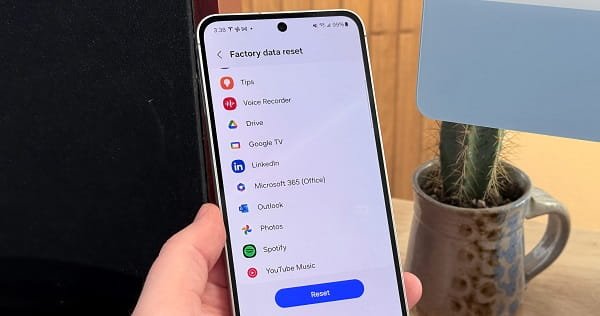
Understand What a Factory Reset Removes
A factory reset deletes personal information stored in the phone’s internal memory. This normally includes installed apps, app data, downloads, call records, messages, accounts, settings and locally saved media.
It does not usually return the phone to an older Android version. The device keeps the operating-system version already installed. A removable microSD card may not be erased automatically, so remove it before resetting or format it separately.
Back Up Important Data First
Open Settings, search for Backup, and check when the phone was last backed up to your Google Account. On many recent Android devices, the option appears under Settings > Google > All services > Backup. Run a fresh backup and wait until it finishes.
Check important items separately:
- Confirm that photos and videos have synced to Google Photos or another cloud service.
- Copy documents, recordings and Downloads to a computer, external drive or cloud folder.
- Export contacts saved only on the phone or SIM.
- Create a current WhatsApp backup using the correct Google Account.
- Save notes from manufacturer-specific apps if they do not sync automatically.
Open a few backed-up files from another device. A backup matters only when it can be restored.
Protect Passwords and Login Codes
Make sure you know the email address and password of the Google Account linked to the phone. After a reset, Android may ask for the previously used screen lock or Google Account details to verify ownership.
Confirm that your password manager is synced. Transfer two-factor authentication entries, save recovery codes and ensure that another trusted device can receive login approvals. This is essential when the phone is your only route to email, banking or work accounts.
Prepare the Phone for Sale or Exchange
When giving the phone to someone else, remove your Google Account through Settings > Accounts, Passwords and accounts, or a similarly named menu. Sign out of the manufacturer account as well.
Remove the physical SIM and microSD card. For an eSIM, contact the mobile operator or transfer it before deletion. Disable work profiles and consult the employer’s IT team before resetting a company-managed phone.
Reset the Phone Through Settings
Charge the battery to at least 50 percent and keep the device connected to power when possible.
- Open Settings.
- Search for Reset or open System/General management.
- Select Reset options or Factory data reset.
- Choose Erase all data.
- Review the information shown on screen.
- Enter the PIN, pattern or password and confirm.
The phone will restart and may take several minutes to finish. Do not force a shutdown while data is being erased.
When Settings Cannot Be Opened
A locked or unresponsive phone may be reset through recovery mode, but the button combination varies by model. Follow the manufacturer’s official instructions for the exact device.
Recovery mode cannot legitimately bypass ownership checks. After resetting, the phone may still require the Google Account previously associated with it. Use official account recovery or an authorised service centre when those details are unavailable.
Check the Device After the Reset
For personal reuse, connect to Wi-Fi, sign in with the same Google Account and select the available backup during setup. Reinstall essential apps gradually.
For resale, stop at the welcome screen and do not sign in again. Confirm that no SIM, memory card or personal accessory remains with the phone.
FAQs
Q: Will a factory reset delete everything from Google Photos?
A: It deletes local files, but photos already backed up to the correct Google Photos account remain available online. Verify syncing before resetting.
Q: Can data be recovered after a factory reset?
A: Recovery is difficult and cannot be guaranteed on modern encrypted phones. Treat unbacked-up internal data as permanently lost.
Q: Does a factory reset remove viruses?
A: It can remove many malicious apps and unwanted settings. Reinstalling the same unsafe app or compromised backup may bring the problem back.
Q: Should I remove my Google Account before resetting?
A: Remove it before selling, exchanging or giving away the phone. This helps prevent ownership-verification problems for the next user.
 Nishant Pal