 By Akash Sharma
 You discover an interesting streaming, fitness or learning app, but it is nowhere to be found on your smart TV’s home screen. The immediate temptation is to download a random installation file and force it onto the television. That approach may work in some cases, but it can also introduce malware, steal login details or leave the TV unstable.
Installing third-party apps safely begins with identifying the television’s operating system. Google TV, Android TV, Samsung Tizen, LG webOS and Fire TV follow different installation rules. An app designed for an Android smartphone will not automatically work on every smart television.
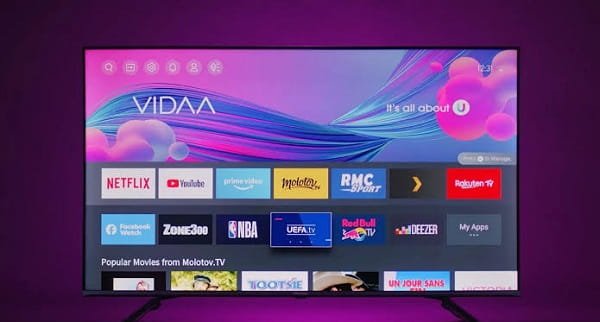
Check Which Operating System Your TV Uses
Open the television’s Settings menu and look under About, Device Information, Support or System Information. The screen should show whether the TV uses Google TV, Android TV, Tizen, webOS, Fire TV or another platform.
Also note the complete model number and software version. Two televisions from the same brand may use different operating systems depending on their model year.
Before installing anything, update the television software and confirm that enough internal storage is available. Low storage can prevent installation or cause applications to crash repeatedly.
Use the Official App Store First
“Third-party app” often simply means an application that was not pre-installed. It does not necessarily mean the app must be downloaded from an unknown website.
On Google TV, open the Apps tab, search for the required service and select Install. Android TV models normally provide the Google Play Store through the Apps section.
Samsung users can press Home, open Apps, select Search and install applications available for their model. LG webOS users can open Apps or the LG Content Store and search for the required app. Fire TV devices provide supported applications through the Amazon Appstore.
Using the official store is the safest method because the app has been prepared for television screens, remote controls and the platform’s security requirements.
Understand Why an App May Be Missing
An application may be unavailable because the developer has not released a television version. It may also be restricted in your country, incompatible with the TV’s software version or no longer supported on older models.
Changing the television’s region simply to access an unavailable service can remove existing apps or create account and payment problems. It may also violate the service provider’s terms.
Check whether the same content can be cast from a smartphone. Casting is often safer and easier than forcing an incompatible app onto the television.
Sideload Apps on Android TV or Google TV Carefully
Android-based televisions may allow APK installation outside the Play Store. This process is known as sideloading.
Download an APK only from the application developer’s official website or another source you can independently verify. Avoid cracked streaming apps, modified premium applications and files promising free access to paid channels.
Transfer the file using a USB drive or a trusted file-transfer application. Open Settings and search for Install Unknown Apps, Unknown Sources, Security or Special App Access. Give installation permission only to the file manager being used.
Open the APK and follow the installation prompt. After installation, immediately remove the unknown-app permission. Keep Google Play Protect enabled, even if a website tells you to switch it off.
Some smartphone APKs may install but remain unusable because they require touch controls, a portrait screen, GPS or mobile-only services.
Install Apps on Fire TV With Caution
Fire TV devices may provide developer settings that allow installation from outside the Amazon Appstore. Menu names differ by device generation.
Enable installation permission only for the trusted downloader or file-management app being used. Download the application from its official developer, complete the installation and disable the permission afterwards.
Developer settings should not remain active unnecessarily. Avoid enabling network debugging unless you understand its purpose and can turn it off after use.
Know the Limits of Samsung and LG TVs
Samsung Tizen and LG webOS televisions do not normally accept Android APK files. Their applications use different formats and must generally come through the platform’s approved store.
Websites claiming that an ordinary APK can be installed directly on any Samsung or LG TV are often misleading. When the required app is unavailable, use a compatible streaming stick, set-top box, gaming console or casting device instead.
Protect the TV After Installation
Review the application’s permissions and remove access that is unrelated to its purpose. Do not enter banking information, primary email passwords or card details into an unverified app.
Watch for warning signs such as unexplained advertisements, overheating, slow menus, unknown subscriptions or sudden network activity. Remove the application immediately if the TV becomes unstable.
FAQs
A: No. APK files work only on compatible Android-based televisions, and many phone apps are not designed for TV screens or remote controls.
Q: Can third-party apps damage a smart TV?
A: Unsafe apps can cause crashes, collect personal information or expose the device to malware. Install only from trusted developers and keep security verification enabled.
Q: Why does an installed app not appear on the home screen?
A: The app may not include a television launcher icon. Check the complete Apps list, although this often indicates that the application was designed for smartphones.
Q: What should I do when my TV does not support an app?
A: Use screen casting or connect a supported streaming device through HDMI. This is usually safer than modifying the television’s operating system.
 Nishant Pal